Oct 2, 2024
ProductApple gift card add to wallet: a step-by-step guide
Learn how to add your Apple gift card to the Wallet app. Follow simple steps to streamline payments and track balances on your iPhone.
You received an Apple gift card and want to add it to your iPhone's Wallet app for easy access. The good news: it takes about 30 seconds. The catch: Apple gift cards work differently than you might expect. Here's exactly how to do it, plus what to do if your gift card doesn't fit Apple's system.
How to add an Apple gift card to Apple Wallet
Apple gift cards can be added to your Apple Account balance, which then appears in Apple Wallet. Here's the process:
Step 1: Open the App Store on your iPhone. Tap your profile icon in the top right corner.
Step 2: Tap "Redeem Gift Card or Code." You can either use your camera to scan the card or enter the code manually.
Step 3: Once redeemed, the balance is added to your Apple Account. Open the Wallet app to see your Apple Account balance displayed alongside your other cards.
That balance now works for App Store purchases, Apple Music, iCloud storage, and Apple Store purchases. At checkout, your Apple Account balance is used automatically before charging other payment methods.
What Apple Wallet won't accept
Here's where it gets tricky. Apple Wallet stores your Apple Account balance, but it doesn't accept gift cards from other retailers. That Starbucks gift card, Amazon card, or Target card you received? Apple Wallet has no way to add them. You're left with screenshots, photos in your camera roll, or carrying the physical cards.
Even some Apple-related cards cause confusion. Apple Store gift cards (the physical ones for hardware) work the same way as digital Apple gift cards. But third-party gift cards purchased from Apple, like those for other retailers, follow each retailer's own system.
Using Folio for all your gift cards
Folio solves the limitation Apple Wallet has: it stores gift cards from any retailer, not just Apple. Amazon, Starbucks, Target, Best Buy, restaurant chains: add them all in one place. The app works on both iOS and Android, so you're not locked into one ecosystem.
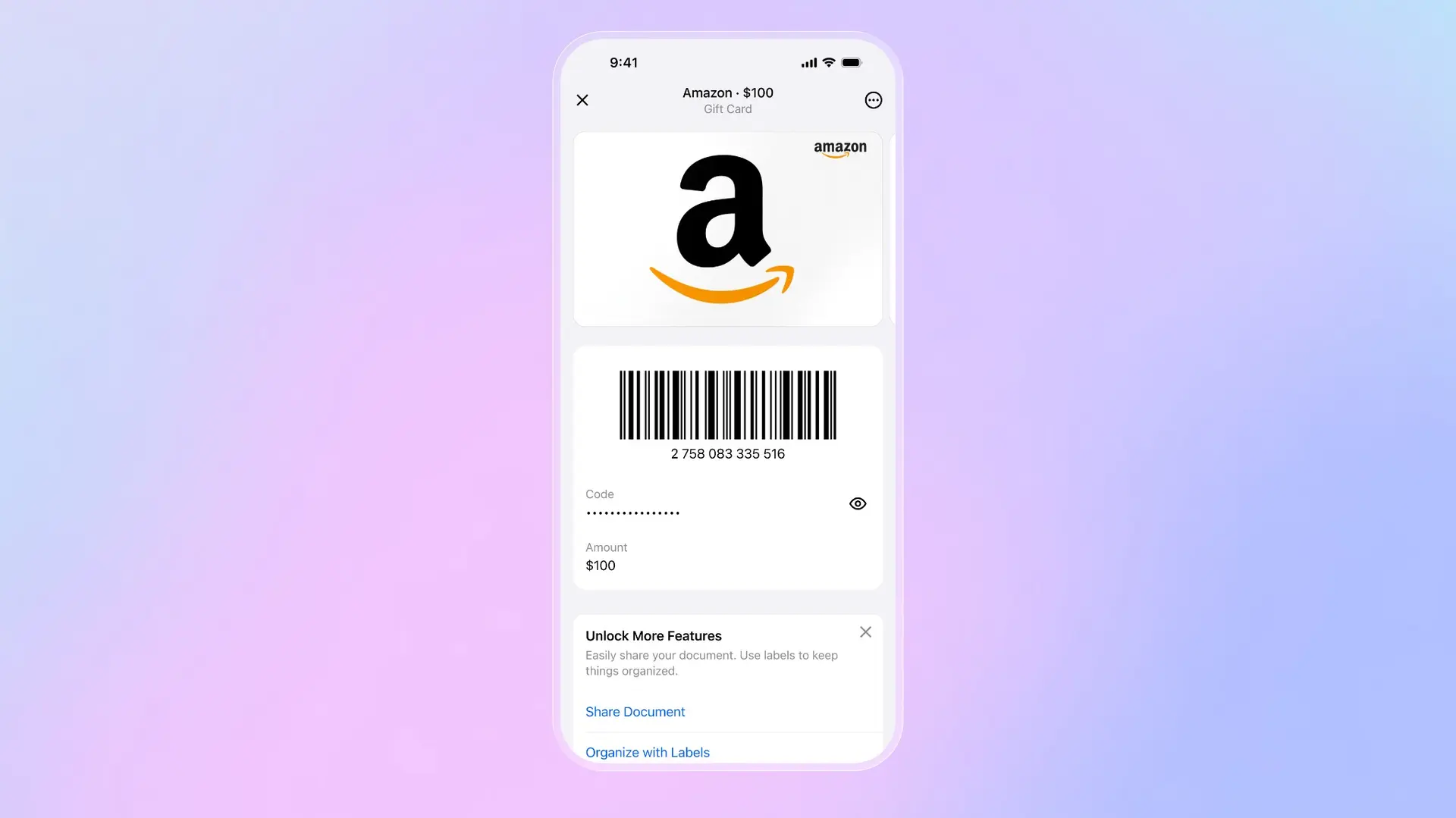
Adding a gift card to Folio takes seconds: tap the + icon, select Any Document, then scan the card with your camera, choose an existing photo, or enter the details manually. Folio extracts the barcode automatically so you can show it at checkout. Set expiration dates and get reminders before cards expire, so you never lose value on forgotten cards.
Security is where Folio differs from storing cards as photos. Everything is encrypted end-to-end and protected with passkeys and biometric authentication. Your gift card PINs stay hidden until you need them. If you lose your phone, your cards remain protected.
Troubleshooting Apple gift card issues
If your Apple gift card won't redeem, check a few things. First, make sure you're entering the code correctly: it's the 16-character code on the back, not the card number. Second, verify the card hasn't already been redeemed by checking your Apple Account balance in Settings → your name → Payment & Shipping. Third, ensure your iOS is up to date, as older versions occasionally have redemption bugs.
For cards that show as already redeemed but you never used them, contact Apple Support with your proof of purchase. Gift card fraud exists, and Apple can investigate cards that were compromised before you received them.
The bottom line: Apple Wallet handles Apple gift cards well once you understand they become account balance rather than stored cards. For everything else, Folio keeps all your gift cards organized, secure, and ready to use regardless of which retailer issued them.
Download Folio Wallet
Available free on iOS and Android


Keep reading
Best identity verification platforms in 2025
Research
Dec 19, 2025
Best identity verification platforms in 2025
Research
Dec 19, 2025
The EU is giving everyone a digital ID wallet. Here's what that means.
Product
Oct 25, 2025
The EU is giving everyone a digital ID wallet. Here's what that means.
Product
Oct 25, 2025
How NFC chip scanning verifies your passport in seconds
Business
Oct 20, 2025
How NFC chip scanning verifies your passport in seconds
Business
Oct 20, 2025